
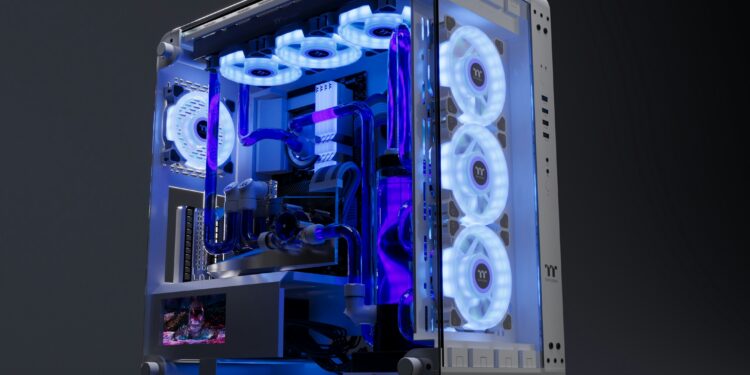

How to overclock your CPU: a clear, safe guide to squeeze more performance from your processor without unnecessary risk. CPU overclocking raises a processor’s clock speed above factory settings so your system can run faster — delivering measurable gains in CPU-bound games and multi-threaded tasks like video rendering.
Typical real-world improvements vary by system: expect modest single-digit gains in GPU‑bound games, and anywhere from ~5–20% faster frame rates or 10–30% shorter multi-core render/export times on CPU‑limited workloads, depending on your CPU, cooling, and motherboard. These are examples — exact results depend on your hardware and settings.
Overclocking can be highly rewarding for desktop PC owners who want to increase performance without buying new hardware, but it carries risks — higher temperatures, increased power draw, and potential warranty implications. Read the step-by-step guide below and follow the safety checkpoints to overclock responsibly.
Understanding CPU Overclocking and Its Benefits
CPU overclocking is the deliberate act of increasing a processor’s operating clock above its factory-set frequency so the system can run faster and complete CPU-bound tasks more quickly. By raising clock speed and, when needed, adjusting voltage, you force the processor to execute more cycles per second — which translates to better responsiveness and higher throughput for certain workloads.
Not all workloads benefit equally. Single-threaded tasks that rely on high per-core clock (some older games and light desktop apps) tend to show modest gains, while highly parallel workloads (video encoding, 3D rendering, large compiles) often see larger improvements. Typical real-world ranges (which vary by model and cooling) are roughly +5–15% in CPU-limited gaming scenarios and +10–30% in multi-threaded content-creation tasks — use these as broad examples, not guarantees.
Key benefits
- Improved performance: higher clock speeds result in faster frame rates and shorter render/export times on CPU-limited workloads.
- Better value from existing hardware: overclocking can delay upgrades by extracting more performance from current CPUs and motherboards.
- Custom performance tuning: you can optimize per-core clocks or all-core frequencies to match specific games or applications.
Trade-offs and limits: increasing clock and voltage raises power draw and heat output, which can trigger thermal throttling if cooling is insufficient. Overclocking also increases component stress; while it can postpone buying new hardware, it does not reliably “extend the lifespan” of a CPU — in some cases it can reduce longevity if temperatures or voltages exceed safe limits.
In short, cpu overclocking and tweaking overclocking cpu settings can unlock meaningful performance for the right workloads, but success depends on your processor, motherboard, cooling, and power delivery. If your goal is to run faster for gaming or speed up time-consuming tasks, plan your overclock around realistic expectations and solid cooling to avoid reaching damaging limits.
Essential Prerequisites Before You Begin
Before you attempt to overclock, confirm your system is ready — overclocking stresses cpu, motherboard, cooling, and power delivery. Skipping checks increases the chance of instability, overheating, or component damage. This section lists the minimum prerequisites and a short “before you start” checklist so you can proceed safely.
Before you start (quick checklist)
- Is your CPU unlocked? (Many desktop cpus are locked at the factory; Intel “K”/”KF” parts and most modern Ryzen chips offer easier overclocking.)
- Does your motherboard support overclocking? (High-quality motherboards with capable VRMs and an overclocking-friendly chipset are recommended.)
- Is your cooling sufficient? (High-end air, AIO liquid coolers, or custom loops are preferable for meaningful overclocks.)
- Is your PSU powerful and stable enough? (A quality power supply with headroom for increased voltage and power draw.)
- Have you updated the BIOS/UEFI to the latest stable version? (BIOS updates can improve stability and overclocking controls.)
- Do you have monitoring and stress-test tools ready? (HWiNFO, CPU-Z, and a stress tool like Prime95 or OCCT.)
If any item above is “no,” address it before changing clock or voltage settings. Note: overclocking on laptops is generally limited or unsupported — this guide targets desktop pcs and desktop-class cpus.
CPU compatibility and factory limits
Not all cpus are created equal. Some are locked at the factory and cannot be overclocked beyond defined turbo behavior. Intel unlocked models (commonly marked with K/KF) allow manual multiplier changes; many AMD Ryzen processors allow both manual overclocking and boost-tuning. Check your processor’s spec sheet to confirm whether manual overclocking is possible for your model.
Motherboard and VRM considerations
The motherboard’s chipset and VRM (voltage regulator module) quality determine how well your system can deliver stable power at higher voltages and sustained currents. For meaningful all-core overclocks you’ll want a motherboard with robust power delivery, good cooling for VRMs, and BIOS options for voltage and multiplier control. Consumer Z-series (Intel) and X/B-series (AMD) boards are commonly used for overclocking — verify compatibility for your exact cpu generation.
Cooling and thermal headroom
Overclocking raises both clock speed and power draw, which increases heat. Choose cooling based on your overclock targets:
- Light overclocks: high-quality air coolers are often sufficient.
- Moderate to aggressive overclocks: AIO liquid coolers (240mm or 360mm) or high-end air coolers.
- Extreme overclocking: custom water loops and careful case airflow are recommended.
Also consider ambient room temperature and case airflow when planning cooling — higher ambient temps reduce thermal headroom.
Memory, BIOS, and system readiness
Memory and system settings can affect stability. Update your BIOS/UEFI to the latest stable release, enable recommended XMP/DOCP profiles for memory if needed, and check that your system memory and storage are functioning correctly before starting. Ensure Windows (or your OS) power settings are set to allow maximum performance during tuning and testing.
Voltage, power, and safety
Adjusting core voltage is often required to stabilize higher clocks, but voltage increases raise temperatures and stress the cpu and motherboard components. Only raise voltage in small increments and monitor temperatures closely. Use a quality PSU to handle increased power draw. Keep a record of default factory settings so you can revert if needed.
Final note: gathering the right hardware (cpu, motherboard, cooling, and power supply) and following the checklist above reduces risk and sets realistic expectations for your overclock. If you’re unsure about compatibility or safe voltage ranges for your specific cpu model, consult the manufacturer documentation before proceeding.
How to Overclock Your CPU: Step-by-Step Guide
Follow these clear, incremental steps to overclock your cpu safely. This plan uses the BIOS/UEFI for manual tuning (recommended for precise control) and includes quick checks, safety limits, and suggested test durations so you can increase clock speeds without guessing.
- Prepare your systemBack up important data and make sure your BIOS is up to date. Close background apps, set your OS power plan to “High performance,” and have monitoring tools ready (HWiNFO, CPU‑Z) plus a stress tool (Prime95, OCCT). You’ll need these for every test step.
- Enter BIOS/UEFIRestart and press the vendor key shown on boot (typical keys: Del, F2, F12 — check your motherboard manual). Navigate to the advanced/OC section where multiplier, core voltage, and power settings live. BIOS labels vary by manufacturer (ASUS/MSI/Gigabyte/ASRock), so locate “CPU Ratio,” “Multiplier,” or “CPU Core Ratio.”
- Baseline: record factory settings and run a quick testNote stock clock speeds, turbo behavior, and default core voltage. Boot to the OS and run a 15–30 minute stress test (Small FFTs or a short Cinebench run) to confirm baseline stability and record temperatures and scores. This gives you a rollback point and measurable “before” numbers for benchmarking.
- Increase multiplier / core ratio (small steps)In BIOS, increase the CPU multiplier by one step (e.g., +1 core ratio). Save and boot. Run a short stress test (15–30 minutes) to confirm stability and watch temps. If stable, repeat increments until you hit instability or reach your planned target. This approach isolates changes and helps identify the first unstable step.
- If unstable, adjust core voltage carefullyWhen higher multipliers fail, you’ll often need more core voltage (vCore). Increase cpu voltage in very small increments (e.g., +0.01–0.02V) and test again. Monitor temperatures closely — higher voltage increases heat and long‑term stress. Do not exceed manufacturer guidance for safe voltage ranges without model-specific research.
- Check memory and power limitsIf your system crashes under multi-threaded loads, ensure memory settings aren’t causing instability. Disable XMP/DOCP temporarily to isolate CPU stability. Also confirm PSU headroom — sustained high power draw can cause system-wide instability if the supply is inadequate.
- Run staged stability testingUse a three-stage test plan: quick smoke (15–30 minutes), extended stability (2–4 hours), and long-term validation (6–12+ hours). For each stage, monitor package/core temps, power draw, and errors. If you see calculation errors, blue screens, or thermal throttling, revert the last change and either reduce multiplier or increase cooling/voltage as required.
- Fine-tune per-core vs all-coreSome systems benefit from per-core overrides (raise only high‑priority cores) while others perform best with a conservative all-core limit. Fine-tune based on your workload: gaming often benefits from higher single‑core clocks, while rendering benefits from higher all‑core frequencies.
- Save stable profiles and document settingsOnce you reach a stable configuration, save it in BIOS as a profile and document voltages, multipliers, and test results. Keep an emergency plan (how to clear CMOS if the system won’t boot) and know your motherboard’s recovery options.
- Use vendor tuning tools as neededIntel users can use Intel XTU for fine adjustments and logging; AMD users can try Ryzen Master for detailed tuning within Windows. These tools can complement BIOS adjustments but don’t replace methodical BIOS tuning for maximum control.
Intel-specific notes
On intel processors with unlocked models (K/KF), adjust the CPU Ratio (multiplier) and monitor core voltage. Some motherboards expose additional AVX offsets or voltage controls — use these if your workload includes heavy AVX instructions that raise temperatures significantly.
AMD-specific notes
For amd processors, the BIOS “OC” section and Ryzen Master provide both multiplier and voltage tuning. Note that Precision Boost and Curve Optimizer interactions vary by generation — you can use curve optimizer to reduce voltage on certain cores for efficiency or raise all‑core targets manually if you prefer consistent clock speeds.
Safety checkpoints and suggested targets
- Quick check after each change: boot success, no crashes, temps within safe limits.
- Quick test: 15–30 minutes; Extended: 2–4 hours; Validation: 6–12+ hours.
- Keep an eye on peak package/core temperatures during extended tests — if temps approach unsafe levels for your cpu model, stop and improve cooling.
By following these step-by-step instructions — increasing the multiplier in small steps, adjusting cpu voltage only when necessary, and validating stability with staged stress tests — you can overclock cpu and improve speed for gaming, rendering, and other cpu-limited workloads while minimizing risks and respecting system limits.
Stress Testing and Stability Verification
Stress testing is a non-negotiable step after you overclock cpu settings — it proves whether your changes hold up under sustained load. Overclocking pushes a processor beyond factory behavior, so running targeted stress tests helps reveal instability, overheating, or voltage-related errors before you rely on the system for important work or long gaming sessions.
Recommended stress-test protocol
- Quick smoke test (15–30 minutes) — a short run to catch immediate boot crashes or early thermal problems after a change.
- Extended test (1–4 hours) — validates sustained stability for most daily workloads and heavy gaming sessions.
- Long validation (6–12+ hours) — recommended for heavy render farms, long encoding jobs, or before declaring an overclock “daily stable.”
Which tools to use and when
- Prime95: use Small FFTs for maximum CPU load and thermal/power testing; use Blend for combined CPU + memory stress (fact-check exact presets for your Prime95 build).
- OCCT: offers preconfigured CPU, power, and GPU tests and built-in monitoring — useful for spotting power-supply or VRM issues.
- Cinebench / real-world benchmarks: run multi-core Cinebench or application-specific renders to confirm real-world performance gains and compare scores to your baseline.
- Monitoring tools: HWiNFO (detailed sensors), HWMonitor or CPU-Z for quick checks, and GPU-Z if your workload stresses graphics alongside CPU. Log package temperature, individual core temps, power draw, and reported voltages.
What to watch for
- Calculation errors or Prime95 test failures — these indicate instability and usually require reducing multiplier or raising cpu voltage cautiously.
- System crashes, bluescreens, or application errors — treat these as hard failure signals; revert to the last known-good setting if needed.
- Thermal throttling or sustained high temperatures — if cores hit near‑maximum safe temps for your cpu model, stop testing and improve cooling before increasing voltage or clocks.
- Unexpected power behavior — sudden drops or system-wide instability can point to PSU or motherboard VRM limits.
Quick troubleshooting flow
If a stress test fails: reduce multiplier → run quick smoke test → if still failing, reset to stock and re-evaluate cooling/PSU/VRM. Only increase cpu voltage in very small increments and retest after each change. If errors persist after modest voltage increases, back off the clock target — pushing past stable limits risks damage and overheating.
Record test durations, peak temperatures, average voltages, and final benchmark scores to compare against your baseline. This documentation helps you identify safe operating limits and demonstrates the real-world benefit of your overclock. Regular stress testing after system or BIOS changes ensures long-term reliability for your overclocked system.
Troubleshooting Common Overclocking Problems
Troubleshooting is a core skill for anyone who overclocks cpu settings. Overclocking increases clock speed and stress on components, which can cause instability, crashes, or overheating — but most issues are solvable with a methodical approach.
Common symptoms and likely causes
- Boot failure / no POST: often a multiplier or voltage pushed too high; BIOS/UEFI can reject the settings.
- Crashes / blue screens (BSOD) or application errors: usually instability from insufficient cpu voltage for the chosen clock, or memory-related instability.
- Calculation errors in stress tests: indicate outright instability — lower clocks or increase cpu voltage slightly and retest.
- Thermal throttling or sudden shutdowns: caused by overheating; cooling is inadequate or case airflow is poor.
- System-wide instability under load: may point to PSU or motherboard VRM limits rather than the cpu itself.
Step-by-step troubleshooting flow
- Clear recent changes and boot: if the system won’t POST, use the motherboard’s CMOS clear jumper or remove the CMOS battery per the manual.
- Reset to a known-good baseline: load optimized defaults in BIOS/UEFI to return to factory settings.
- Reproduce the failure with a short test: run a quick smoke test (15–30 minutes) and note errors, temps, and behaviour.
- If errors appear, lower the multiplier by one step and retest. If instability persists, restore stock settings and check cooling/PSU/DRAM.
- When increasing cpu voltage to stabilize, do so in small increments and monitor temperatures closely — stop immediately if temps become excessive.
Examples and what logs show
Prime95 or OCCT errors will typically show failed worker threads or calculation mismatches; record the failing test and timestamp. Thermal throttling shows as a drop in clock speeds in HWiNFO or HWMonitor under sustained load — if you see clock speeds falling while temps spike, improve cooling before continuing.
Cooling guidance for hot climates (e.g., India) and general tips
- Improve case airflow: ensure front intake and rear/top exhaust fans are unobstructed and set appropriate fan curves in BIOS or fan controllers.
- Choose cooling based on overclock ambition: high-end air for modest overclocks, 240/360mm AIO or custom loops for aggressive all-core overclocks in warm ambient temperatures.
- Lower ambient room temperature when possible — even a few degrees Celsius buys meaningful thermal headroom.
Protecting components and warranty considerations
Overclocking can increase the risk of damage if voltages and temps exceed safe limits. Many manufacturers may void warranty if damage is proven to be caused by manual overclocking — check your warranty terms. Always keep backups and a system image before extensive tuning so you can recover quickly if something goes wrong.
Final checklist for troubleshooting
- Document the failing step (what you changed) and revert to the last stable point if needed.
- Verify cooling, clean dust filters, and improve airflow before raising voltage further.
- Test PSU and motherboard VRMs if instability appears at lower clocks — weak power delivery can mimic cpu instability.
- When in doubt, consult your motherboard manual, official cpu guidance, or community threads for model-specific advice.
With a calm, stepwise approach — clear CMOS when needed, revert to stock to isolate issues, and address cooling, voltage, or power-delivery problems — most overclocking problems are resolvable. Prioritize component safety, keep an eye on temps and voltages, and allow time for proper testing to ensure a stable, long-lasting overclock.
Maximizing Your Overclocked CPU’s Potential
Once you have a stable overclock, ongoing maintenance and smart tuning keep your cpu running at peak performance. Regular monitoring prevents overheating and throttling, and targeted tweaks can increase performance for specific tasks without unnecessary risk.
Monitoring: what to watch and how often
- Daily / before heavy sessions: check package/core temperatures, core voltage, and clock speeds with HWiNFO or HWMonitor to ensure no unexpected spikes.
- Weekly: run a quick stress test or a short Cinebench run to confirm consistent scores and temperatures.
- Monthly or after system changes: re-run extended stability testing (2–4 hours) after BIOS updates, driver updates, or hardware swaps.
Tools to maximize performance
- Intel XTU — useful for Windows-based fine-tuning, logging, and quick on-the-fly adjustments on Intel systems.
- AMD Ryzen Master — provides per-core tuning and curve optimizer controls for Ryzen processors inside Windows.
- Monitoring & benchmarking — HWiNFO for continuous sensor logs, CPU-Z for quick clock/voltage checks, and Cinebench or real-world application benchmarks to quantify gains.
Fine-tuning tips
- Prioritize core voltage (core voltage) and cooling — small voltage reductions that maintain stability reduce heat and improve longevity.
- For gaming, favor higher single-core clocks where possible; for rendering or multi-task workloads, target higher all-core frequencies.
- Log benchmark scores and temps before and after each significant change so you can see real benefits and decide whether further increases are worth the extra heat.
Maintenance checklist & quick wins
- Keep BIOS and chipset drivers updated for better stability and new tuning features.
- Maintain clean airflow: dust filters, fan curves, and radiator maintenance improve cooling headroom.
- Use a balanced approach — increasing clocks for performance is good, but increasing voltage has diminishing returns and increases risk.
FAQ — quick answers
- Does overclocking void warranty? It can — check your CPU and motherboard warranty terms before proceeding.
- Can I overclock laptops? Most laptops are limited; only a few allow safe overclocking and often with reduced headroom.
- When should I stop increasing voltage? Stop if temperatures approach your cpu’s safe limits, if stability doesn’t improve, or if the gains are negligible versus the extra heat and power draw.
Follow a scheduled maintenance routine, use vendor tools (XTU or Ryzen Master) for convenient tuning, and document every change. That way your overclocked system will continue to run faster for gaming, rendering, and everyday tasks while minimizing risks to components and warranty.